Getting started as a courier
Installing the app
Section titled “Installing the app”The app is for Android phones, and is downloaded from our website rather than from an app store.
- On your phone, open the couriers page and tap Download for Android.
- Open the downloaded file.
- The first time, your phone asks whether your browser may install apps. Allow it for this download.
- Tap Install, then Open.
You’ll need mobile data and location turned on while you work: the app uses your location to offer you deliveries nearby.
Applying
Section titled “Applying”On the first screen, tap Apply to deliver.
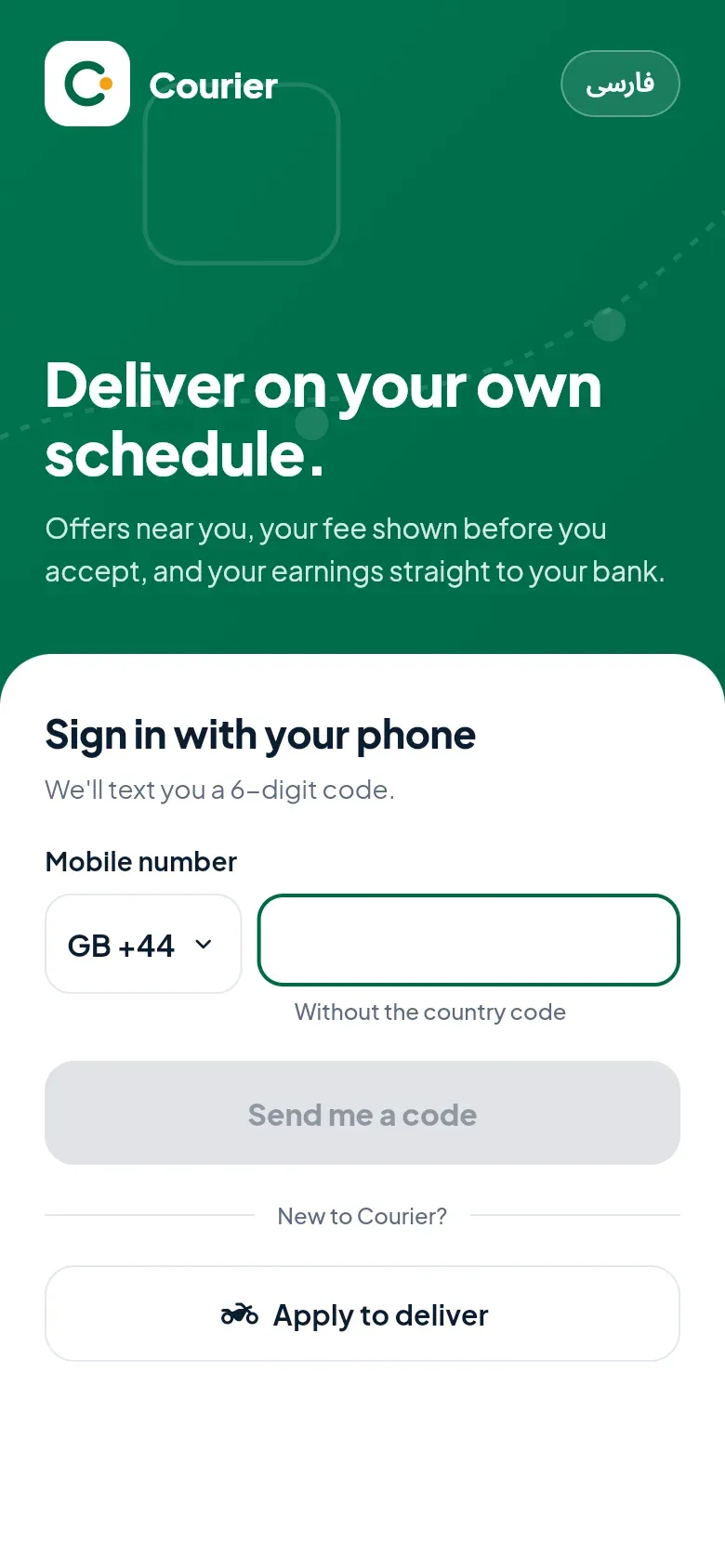
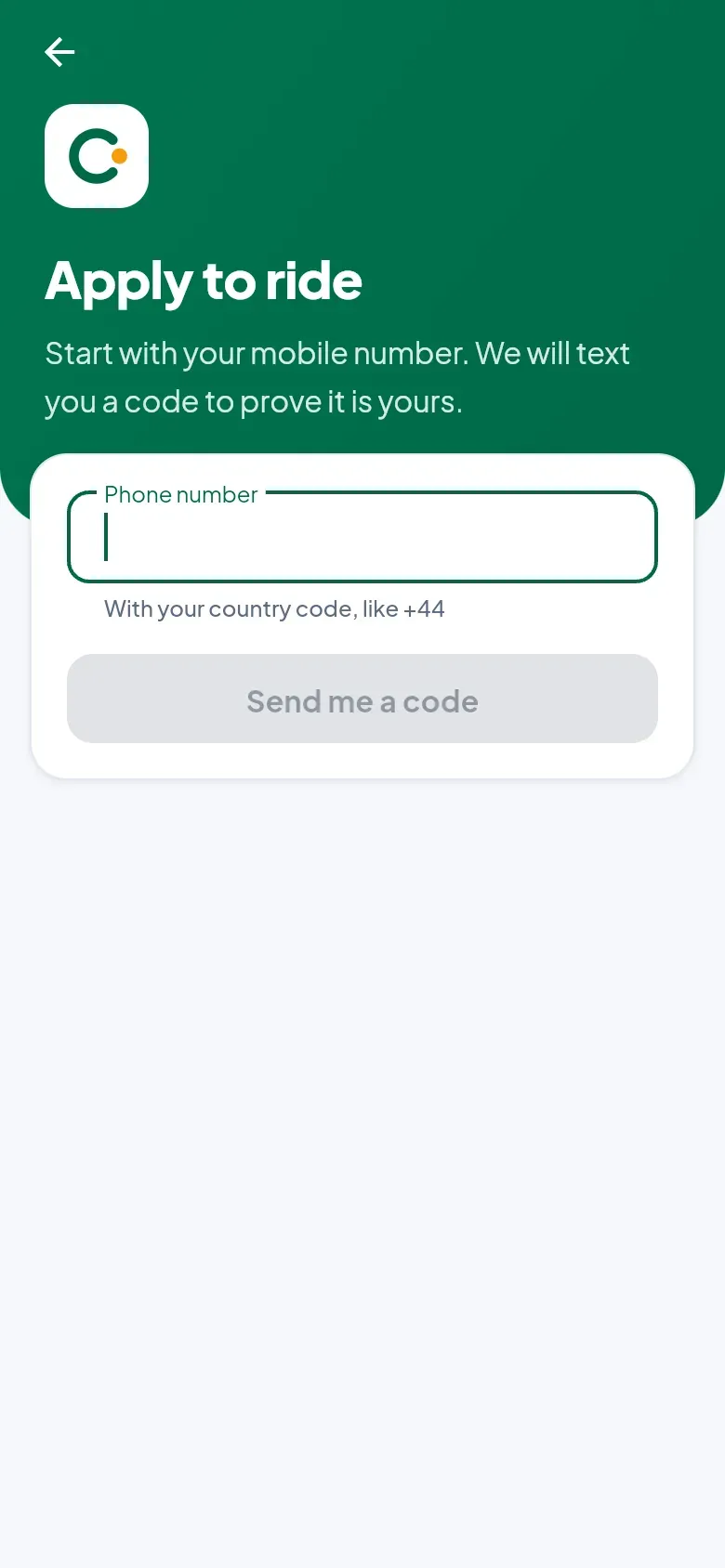
- Enter your mobile number with its country code. We text you a code to prove it’s yours.
- Tell us your name as it appears on your documents, your city, and what you ride.
- You’re signed in straight away, and the app asks for your documents.
Sending your documents
Section titled “Sending your documents”Open Profile → Your documents. Take a photo of each document, or choose a photo or a PDF you already have. Which ones you need depends on what you ride:
| You ride | Documents |
|---|---|
| A bicycle or an e-bike | Right to work |
| A motorcycle, a car or a van | Right to work, driving licence, insurance, vehicle registration |
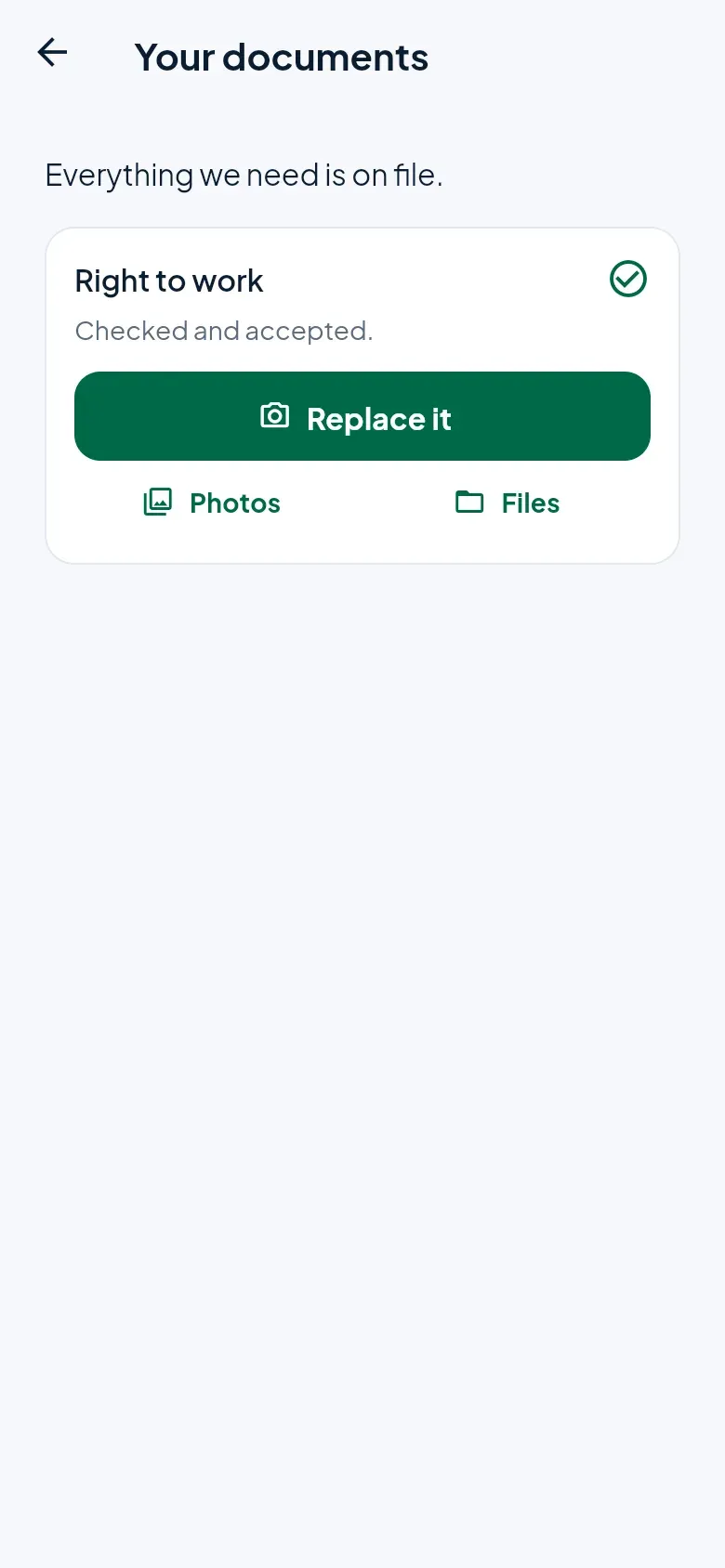
Each one shows whether it’s been sent, is being checked, has been accepted, or needs sending again. We tell you as soon as you’re approved. An expired document has to be replaced before you can work.
Setting up how you get paid
Section titled “Setting up how you get paid”Before your first delivery you set up where your money goes. Open Profile → Getting paid and tap Set up payouts: it takes a few minutes, on our payment provider’s own site. We never see your bank details.
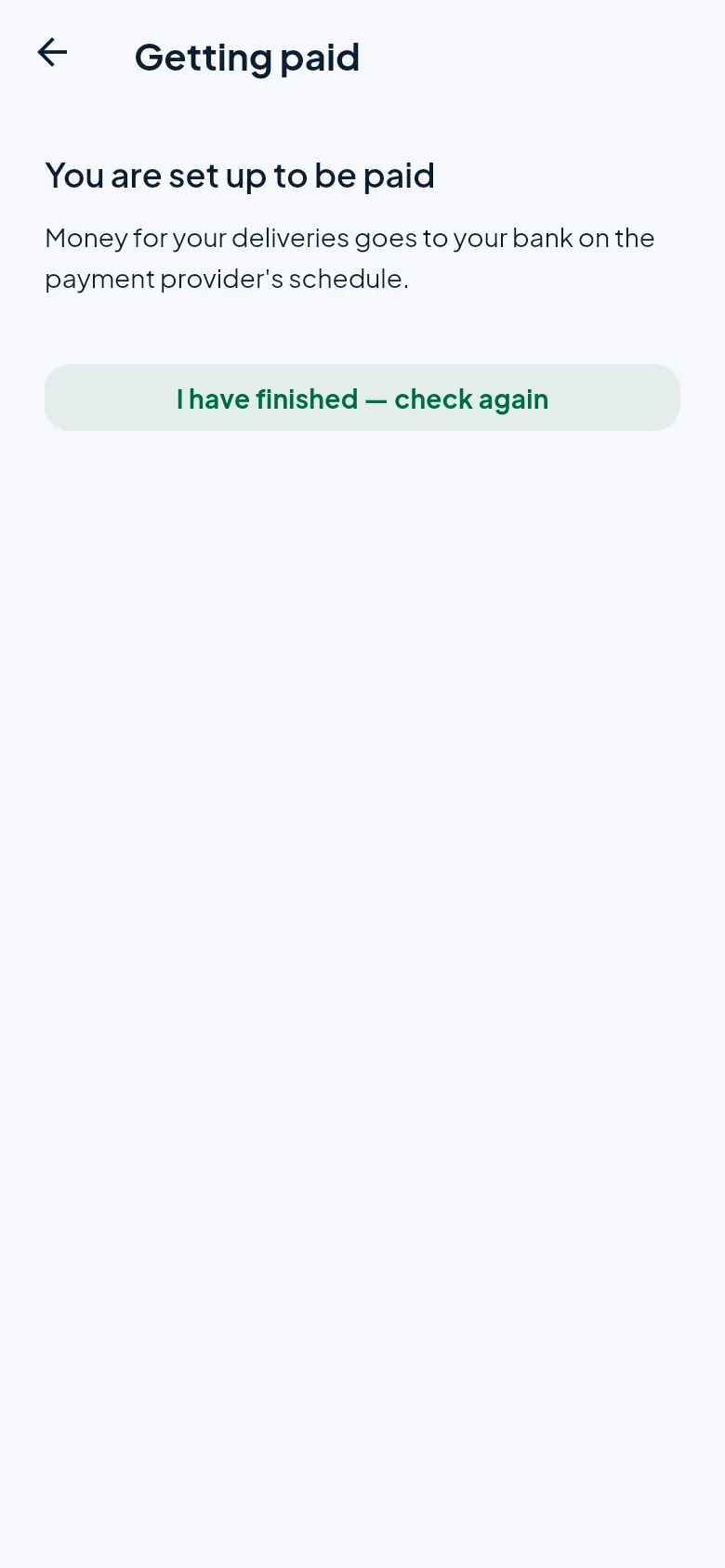
When you’re back in the app, tap I have finished — check again. Until this is done you won’t be offered work, because you couldn’t be paid for it.
Signing in
Section titled “Signing in”Next time, sign in with your mobile number and the 6-digit code we text you.