
Getting around the portal
The merchant portal is where you book deliveries, follow them, and look after your account. It runs in any browser — there is nothing to install.
Signing in
Section titled “Signing in”Sign in with your email address and password. Accounts are set up for you: your account manager creates the first one, and an owner can add colleagues from Team.
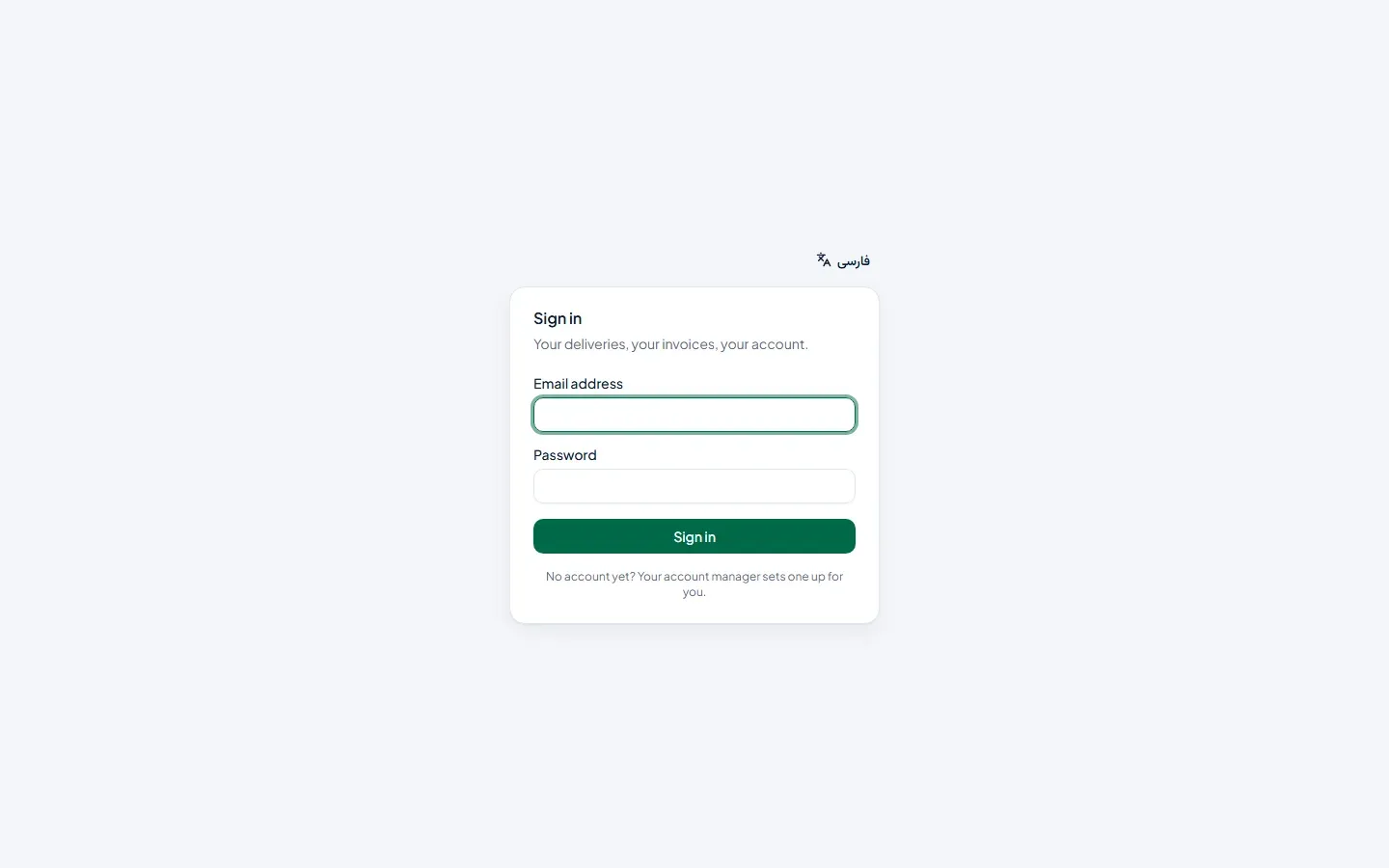
Five wrong passwords in a row lock the account for a short while. If you’ve forgotten yours, ask an owner on your account to set a new one.
Finding your way
Section titled “Finding your way”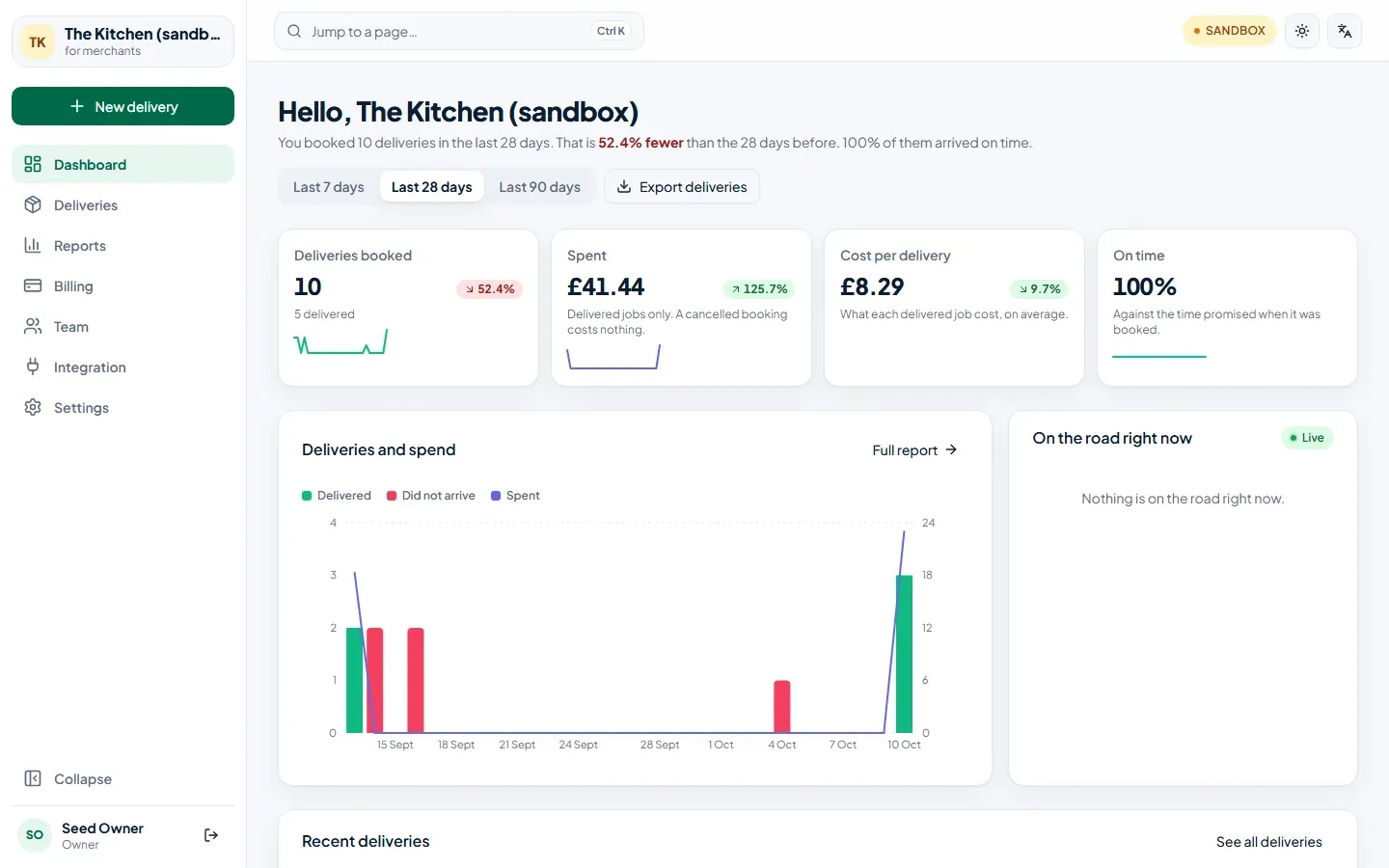
- New delivery at the top of the menu books one. It’s available from every page.
- Dashboard shows how the last 7, 28 or 90 days went, and what’s on the road right now.
- Deliveries lists every delivery you’ve booked. The number beside it is how many are under way.
- Reports goes deeper: volume, quality and cancellations.
- Billing, Team and Integration are for owners — cards, colleagues, and API keys and webhooks.
- Settings has your password, your collection address, and what couriers and customers are asked for.
Along the top:
- Jump to a page (or Ctrl+K) opens any page, or a new delivery, from the keyboard.
- The yellow Sandbox badge means you are in the test environment: deliveries are pretend and nothing is charged. A live account has no badge.
- The sun icon switches between light and dark, and the language icon between English and فارسی.
Owners and staff
Section titled “Owners and staff”Every person on an account is an owner or staff.
| Owner | Staff | |
|---|---|---|
| Book and follow deliveries | ✓ | ✓ |
| See the dashboard and reports | ✓ | ✓ |
| Change the collection address, proof and customer texts | ✓ | |
| Cards and charges | ✓ | |
| Add and manage colleagues | ✓ | |
| API keys and webhooks | ✓ |